Short Answer
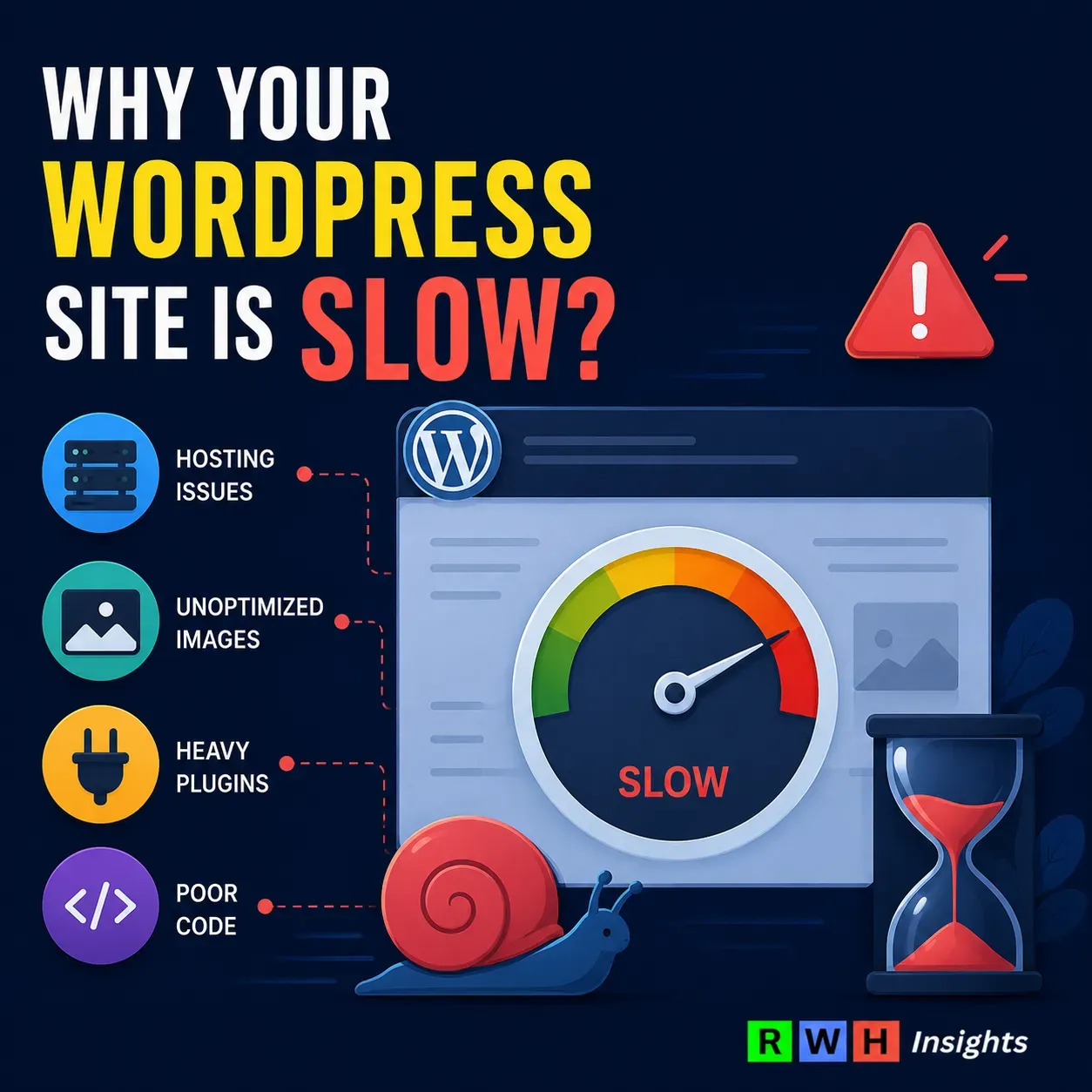
If your WordPress site is slow, the first thing to check is your server response time (called TTFB). If it is over 500ms, no plugin will fix it — you need better hosting. Kinsta and Cloudways consistently deliver TTFB under 200ms in independent tests. Hostinger is the fastest budget option. Everything else in this guide only matters once your hosting is sorted.
When a WordPress site is slow, most people immediately start disabling plugins. That is a reasonable instinct, but it is rarely the actual fix. Plugins can contribute to slowness, but they are almost never the root cause. The root cause, in the majority of cases, is the hosting.
This guide walks through how to diagnose a slow WordPress site properly, what the numbers actually mean, and what to do based on what you find. We will cover the metrics that matter, the tools to measure them for free, and the hosting decisions that make the biggest difference.
The three metrics that tell you why your site is slow
Before doing anything, you need to know which problem you are actually solving. WordPress performance problems almost always show up in one of three metrics: TTFB, LCP, or CLS. They measure different things and have different causes and fixes.
TTFB: The server response time, and why it comes first
TTFB stands for Time to First Byte. It measures how long it takes from the moment a browser requests your page to the moment it receives the very first byte of data back from your server. Think of it as the handshake before the actual conversation starts. Everything else — images loading, fonts rendering, scripts running — cannot begin until that first byte arrives.
This is why TTFB matters more than most people realise. A slow host makes a “Good” LCP score nearly impossible to achieve, regardless of how well you optimise your images or code. If your TTFB is 700ms, your page starts with a 700ms handicap before the browser has even seen a single character of HTML. No caching plugin, no image compression, no lazy loading trick can fix that.
What are the right numbers? Google recommends a TTFB under 800ms for a “Good” rating, but for competitive SEO and good user experience, targeting under 300ms is more realistic. Under 200ms is excellent. Under 400ms is acceptable. Anything above 600ms signals a server-level problem that no caching plugin can fully fix.
The bigger picture: only about 65% of WordPress sites pass even the generous 800ms threshold. This is primarily an infrastructure problem, not a WordPress code problem. Most slow WordPress sites are slow because of underpowered shared hosting, not because of their theme or plugin count.
LCP: How long users wait to see the main content
LCP stands for Largest Contentful Paint. It measures how long it takes for the biggest visible element on the page — usually a hero image, a heading, or a banner — to fully load. This is the moment the page starts feeling usable to a visitor. Google’s target for a good LCP score is under 2.5 seconds. Between 2.5 and 4 seconds needs improvement. Above 4 seconds is poor.
LCP is directly tied to TTFB. Every 100ms of extra TTFB pushes your LCP score in the wrong direction. If you have a good TTFB but a bad LCP, the cause is usually a large unoptimised image, a render-blocking font, or a slow third-party script loading in the critical path. Those are fixable without changing hosts. But if your LCP is slow and your TTFB is also over 400ms, fix the hosting first.
CLS: the layout shift problem
CLS stands for Cumulative Layout Shift. It measures how much the page layout jumps around while loading. You have experienced this: you go to click a button and just as your finger lands, an ad loads above it and you end up clicking something else. That is a CLS problem. Google’s target is a CLS score below 0.1. Most CLS issues come from images or embeds without defined dimensions, fonts that load late and cause text to reflow, or ads that inject themselves into the page after it has already rendered.
CLS is rarely a hosting problem. It is almost always a front-end problem: missing image dimensions, late-loading fonts, or third-party embeds behaving badly. It is worth fixing, but it should not be your first priority if your TTFB and LCP are also suffering.
The diagnostic priority: Fix them in order
| Metric | What it measures | Good score | Main cause when bad | Fix priority |
|---|---|---|---|---|
| TTFB | Server response time | Under 300ms | Poor hosting infrastructure | Fix first |
| LCP | Time for main content to appear | Under 2.5s | Slow TTFB, large images, blocking scripts | Fix second |
| CLS | Layout stability | Under 0.1 | Missing image dimensions, late fonts, ads | Fix third |
How to measure your site in 10 minutes, for free
You need two tools, both free. Open them both in separate tabs and run your homepage through each.
Google PageSpeed Insights
PageSpeed Insights is Google’s own tool. You paste your URL and it runs a test using real-world data from Chrome users as well as a fresh simulated test. It gives you scores for LCP, CLS, and FID (interaction speed), along with specific recommendations ranked by their estimated impact. The results are split into mobile and desktop — pay attention to mobile, as that is what Google primarily uses to rank your site.
What to look at first: the “Server response times (TTFB)” item in the diagnostics section. If it shows up as a red or orange issue, your hosting is the problem. The other recommendations can wait.
GTmetrix
GTmetrix gives you a waterfall chart — a visual timeline showing exactly when each element of your page starts loading and how long it takes. This is where you find out whether your TTFB is the bottleneck or whether it is something downstream (a slow plugin request, a large image, a third-party script). The waterfall is the most useful thing GTmetrix offers. The overall grade is less important than the first row in the waterfall, which shows your server response time directly.
One tip: run the test from the server location closest to where most of your visitors are. GTmetrix lets you pick the test location on the free plan. A site that tests fast from Dallas might test slower from London if the server is in Texas and you have no CDN.
For TTFB specifically: KeyCDN’s performance test
KeyCDN’s performance test pings your URL from 14 global locations simultaneously and shows you the TTFB from each. This is particularly useful if you are not sure whether your slow speed is a hosting problem or a geography problem (i.e. your server is far from your visitors). If TTFB is fast from North America but slow from Asia, the fix is adding a CDN, not changing hosts. If TTFB is slow everywhere, the host itself is the problem.
Hosting is responsible for more slowness than people admit
Here is a number that puts the hosting question in perspective: the Lighthouse score gap between premium and budget hosting is dramatic — 92 to 94 on premium hosts versus 58 to 62 on budget shared hosting. This 30-point gap comes almost entirely from TTFB and LCP differences, proving that hosting is the single highest-impact performance lever for WordPress.
This happens because shared hosting is, by definition, shared. When you are on a shared plan, you are on a server with hundreds or sometimes thousands of other websites. When any of them get a traffic spike, your site slows down. When the server is under load, your TTFB climbs. You have no control over any of it. Shared hosting commonly delivers 400ms to 1000ms TTFB, especially during traffic peaks.
Managed WordPress hosting works differently. You get isolated resources, server-level caching built specifically for WordPress, and PHP configuration tuned for WordPress workloads rather than generic web traffic. Managed hosts like Kinsta (182ms average TTFB) and Liquid Web (215ms) achieve sub-300ms consistently. Shared hosts like SiteGround (268ms) get close. Anything over 500ms warrants investigation or a hosting change.
Hostinger, Cloudways, and Kinsta: what the data says
These three come up most often in our recommendations because they cover three different price points with meaningfully different performance profiles.
Hostinger is the fastest option at the budget end. Under 10,000 monthly visitors where budget matters, Hostinger gives you the best speed-per-dollar of any shared host tested, with a Grade B+ and under 260ms TTFB. The Business plan adds a CDN that drops load handling response time significantly. The limitation is the same as any shared host: performance is less predictable under load. For a personal site, a small business, or a new project, it is a solid starting point.
See Hostinger plans →Cloudways sits in the middle. It is not a traditional host — it sits on top of cloud infrastructure providers (DigitalOcean, Vultr, AWS, Google Cloud) and manages the server stack for you. This gives you near-VPS performance at a managed hosting price. You get full-page caching via Varnish or Nginx, Redis for object caching, and the ability to scale server size up without migrating. The trade-off is a steeper learning curve than a one-click host. If you are comfortable navigating a slightly more technical dashboard, the performance-per-dollar is excellent. See our full Cloudways review for a detailed breakdown.
See Cloudways plans →Kinsta is the top of the range. Kinsta runs on Google Cloud’s C3D compute-optimised instances with a proprietary edge caching layer built on Cloudflare, consistently delivering the fastest managed WordPress TTFB at 85ms cached and 165ms at the 95th percentile. It includes isolated containers per site, so one site’s traffic spike does not affect yours. The pricing starts at $30/month for one site, which makes it overkill for small projects, but for agencies managing client sites or any business where downtime has a direct cost, the reliability is worth it.
See Kinsta plans →NameHero: the one to know for resellers and agency work
NameHero does not get the same press as Kinsta or Cloudways but deserves a mention for resellers and agencies. NameHero records in the 450–500ms global TTFB range in independent benchmarks, which is mid-tier, but the reseller plan includes white-label tools and the support quality is consistently rated highly. For agencies managing client sites on a budget, the economics make sense in a way that Kinsta’s per-site pricing does not.
See NameHero plans →Provider comparison
| Provider | Avg. TTFB (2026 tests) | Starts at | Best for | |
|---|---|---|---|---|
| Kinsta | 85ms (cached), 182ms (avg) | $30/mo | Agency sites, high-traffic, reliability-critical | Try Kinsta → |
| Cloudways | ~150ms (DigitalOcean) | $11/mo | Developers, agencies wanting cloud flexibility | Try Cloudways → |
| Hostinger | ~260ms (Business plan with CDN) | $2.99/mo | Small sites, personal blogs, budget builds | Try Hostinger → |
| NameHero | ~450–500ms (global avg) | $3.58/mo | Resellers and agencies needing white-label tools | Try NameHero → |
TTFB figures sourced from NorthiScale (60+ days testing, 2026), PageSpeed Matters (8 global locations, Feb 2026), and HostingStep (365-day benchmarks). Cached figures reflect server-level full-page cache. Your real-world numbers will vary by plan, server location, and site configuration.
Caching: What it actually does and where most setups go wrong
Caching is one of the most misunderstood parts of WordPress performance. The basic idea is simple: instead of generating a page fresh every time someone visits (which means running PHP, querying the database, assembling the HTML), you save a pre-built copy and serve that instead. A cached page can be delivered in under 100ms. An uncached page on a typical WordPress install takes 500ms to 2 seconds just to generate, before a single byte is sent to the browser.
The problem is that caching plugins are frequently oversold as a fix for everything. They are not. A caching plugin running on a server with a 700ms raw TTFB will give you a 250ms cached TTFB on repeat visits — but the first visitor still gets 700ms, and any dynamic page (checkout, account, logged-in users) bypasses the cache entirely and gets the full slow load. Caching helps on top of good hosting. It cannot compensate for bad hosting.
Server-level caching vs plugin caching
Server-level caching is handled before PHP even starts. Nginx FastCGI Cache, Varnish, or LiteSpeed Cache at the server layer can serve a cached page in 10–50ms. Plugin-based caching (WP Rocket, W3 Total Cache, WP Super Cache) works at the PHP layer — it still boots PHP, checks whether a cached version exists, and serves it. This adds 50–150ms of overhead compared to server-level caching, but it is better than no caching at all.
Good managed hosts include server-level caching by default. Kinsta, Cloudways, and WP Engine all handle this for you. On a self-managed VPS or shared hosting, you need to configure it yourself or rely on a plugin. If your host does not offer server-level caching, WP Rocket is the most complete plugin option — it handles page caching, browser caching, CSS and JS minification, and lazy loading in one place. WP Rocket costs $59/year for one site.
Object caching: The one most sites miss
Page caching stores the full HTML output. Object caching stores individual database query results. Even when a page cannot be fully cached (because the user is logged in, or it is a WooCommerce cart page), object caching speeds up the database queries the page relies on.
Redis is the standard for WordPress object caching. You need it configured at the server level, and then connected to WordPress via a plugin like the Redis Object Cache plugin (free) or Object Cache Pro (paid, faster). Most managed hosts either include Redis or offer it as an add-on. On Cloudways you enable it with a toggle. If you are on a shared host that does not offer Redis, this is one of the performance advantages you are leaving on the table.
Cloudflare: The CDN layer
Cloudflare sits between your visitors and your server. When someone in Singapore visits your site hosted in Texas, their request goes to the nearest Cloudflare data centre (Singapore) rather than all the way to Texas. If the page is cached at Cloudflare’s edge, the visitor gets it from Singapore at sub-100ms. If it is not cached, the request still goes to Texas — but Cloudflare adds connection optimisations that reduce that trip time slightly.
Cloudflare’s free tier handles DNS, basic CDN, and DDoS protection. For most WordPress sites it is worth enabling purely for the static asset delivery improvement (images, CSS, JS served from the nearest edge location) and the free SSL certificate. The paid Pro plan adds image optimisation and more aggressive edge caching rules, but the free tier does most of the heavy lifting for a typical blog or brochure site.
Set up Cloudflare (free plan available) →Images and fonts: where the quick wins actually live
Once your TTFB is sorted and caching is in place, images and fonts are where the remaining performance gains come from. These are genuine quick wins — the kind that move the needle without touching your hosting or architecture.
Images
Images are almost always the largest part of a page’s total weight. A homepage hero image uploaded as a 4MB JPEG that gets scaled down to 800px wide by the browser is still downloaded at full 4MB. Two things fix this: compression and format conversion.
WebP is the modern image format for the web. It produces files that are typically 25–35% smaller than JPEG at equivalent visual quality. Every major browser supports it. Converting your image library to WebP can cut page weight by several megabytes on image-heavy pages. Plugins like ShortPixel or Imagify do this automatically on upload, and can bulk-convert your existing media library. ShortPixel offers 100 free image credits per month on the free plan, which covers most small sites.
The other thing to check: are images being served at the right size? WordPress generates multiple image sizes automatically, but page builders and themes sometimes load the full-resolution version regardless. In GTmetrix, look for the “Serve images in next-gen formats” and “Properly size images” recommendations. If either appears, you have easy weight to cut.
Fonts
Google Fonts loaded via a standard link tag in the document head are a common source of both LCP slowness and CLS issues. The browser has to make a separate request to Google’s servers to download the font file before it can render any text that uses it. During that download, browsers either show invisible text (FOIT) or show a fallback font that then swaps when the real one loads, causing a layout shift.
The practical fix has two parts. First, self-host your fonts rather than loading them from Google. Download them from Google Fonts (or use the Google Webfonts Helper to get the right files), upload them to your server, and reference them directly in your theme’s CSS. Second, add font-display: swap to your font-face declarations. This tells the browser to show the fallback font immediately and swap in the real font when it arrives, which eliminates the invisible text problem and reduces CLS.
Loading fewer font weights also helps. A site that loads Regular, Medium, SemiBold, Bold, and Italic variants of a Google Font is making five separate font requests. Most sites only actually need two: Regular and Bold. Remove the others and you cut font load time significantly.
When to accept that you need to change hosts
There is a simple test: run KeyCDN’s performance test on your URL from multiple locations. If your TTFB is consistently above 500ms across most regions, and you have already enabled caching, the hosting is the bottleneck. No front-end optimisation will get you to a good Core Web Vitals score from that starting point.
The other signal is consistency. A host that delivers 200ms on a Tuesday afternoon but 900ms on a Friday evening when their shared server is under load is more damaging to your search rankings than one that consistently delivers 350ms. Google’s ranking uses field data from real users over a 28-day window. Inconsistent performance shows up in that data and drags your CWV scores down.
Migration is less painful than most people expect. Tools like Duplicator, WP Migrate, or the built-in migration tools that Kinsta and Cloudways both offer handle the database and file transfer. The main things to test after migration: forms, payment processing if it is an ecommerce site, any hard-coded domain references in the database, and email deliverability if you were using your host’s mail server. Our WordPress Migration Checklist covers each of these in detail.
Choosing a replacement host
| Your situation | Best move | Why | |
|---|---|---|---|
| Under 10,000 visits/month, budget matters | Hostinger Business | Fastest shared hosting in its price range, CDN included on Business plan | Try Hostinger → |
| Growing site, technical enough to manage a dashboard | Cloudways (DigitalOcean) | Near-managed performance at cloud pricing, full stack control without managing Linux directly | Try Cloudways → |
| Agency managing multiple client sites | Kinsta or NameHero Reseller | Kinsta for performance-critical clients. NameHero for volume-based reseller economics with white-label tools | Try Kinsta → |
| High-traffic site where downtime has a direct revenue cost | Kinsta | Isolated container infrastructure, 99.9% uptime SLA, enterprise Cloudflare network, 24/7 support | Try Kinsta → |
The order of operations
If you take nothing else from this article, take this sequence. Work through it in order and stop at the step that fixes your problem — do not do all of them before checking whether the first one helped.
- Measure your TTFB with KeyCDN’s tool from multiple locations. If it is under 400ms, your hosting is not the problem. If it is over 500ms, skip to step 3.
- Check your caching. If TTFB is under 400ms but your page still loads slowly, verify that page caching is enabled and working. In GTmetrix, if the first row of the waterfall (your server response) is fast but total load time is still over 3 seconds, look at what is in the waterfall after it — large images, render-blocking scripts, slow third-party embeds.
- Change your hosting if TTFB is consistently over 500ms. Cloudways is the best balance of performance and price for most situations. Kinsta if budget is not the constraint.
- Fix images. Convert to WebP, ensure images are served at the right dimensions, lazy load anything below the fold. Run through the recommendations in GTmetrix after your TTFB is sorted.
- Fix fonts. Self-host them, add
font-display: swap, and cut any weights you are not actually using. - Add Cloudflare. Even the free tier improves static asset delivery globally and removes a chunk of bot traffic from your server.
Most sites with a genuine performance problem are fixed at step 3. The rest is refinement. For a full checklist covering each of these steps in detail, see our WordPress Speed Optimisation Guide.
Affiliate & Editorial Disclosure
This article contains affiliate links. If you sign up or purchase through our links, we may earn a small commission at no extra cost to you. This has no influence on what we recommend or how we rank products. Our picks are based on independent research and third-party benchmark data.
Performance figures reflect published benchmark data from NorthiScale, PageSpeed Matters, and HostingStep as of early 2026. Real-world numbers vary by plan, server location, site configuration, and traffic volume. Verify current performance and pricing directly with each provider.
All product names and brand imagery belong to their respective owners and are used here for identification purposes only.